IT
IT
 EN
EN

Apfel, an apple for Apple Intelligence
 – Source: Julian Zwengel on Unsplash.
One of the (few) reasons to switch to macOS 26 Tahoe is the opportunity to use the language model that powers Apple Intelligence.
Apple Intelligence is the final product, natively integrated into the Apple ecosystem, with which we can process text (but also images) directly on our device. For example, by selecting a section of text and right-clicking with the mouse to choose Show Writing Tools, we have at our fingertips a useful tool for summarising those mile-long documents or for rewriting hastily jotted-down sentences.
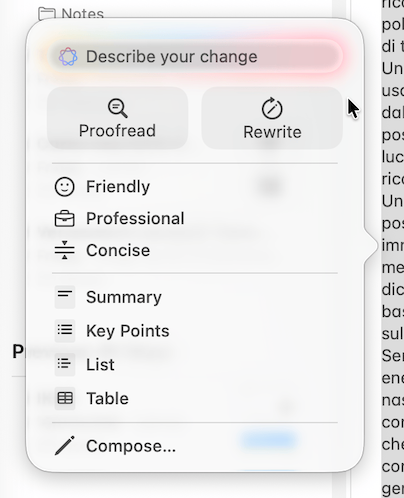
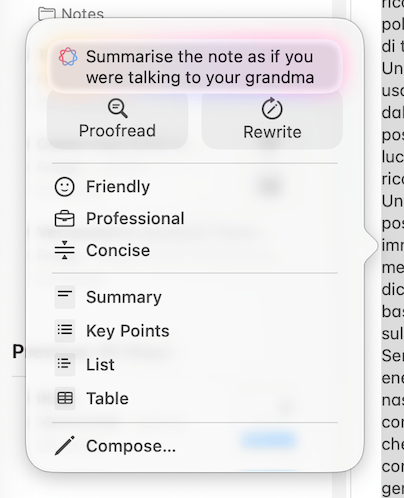
As shown in the figure below, these tools are not limited to Apple applications alone, but can also be used in third-party applications like Firefox.1
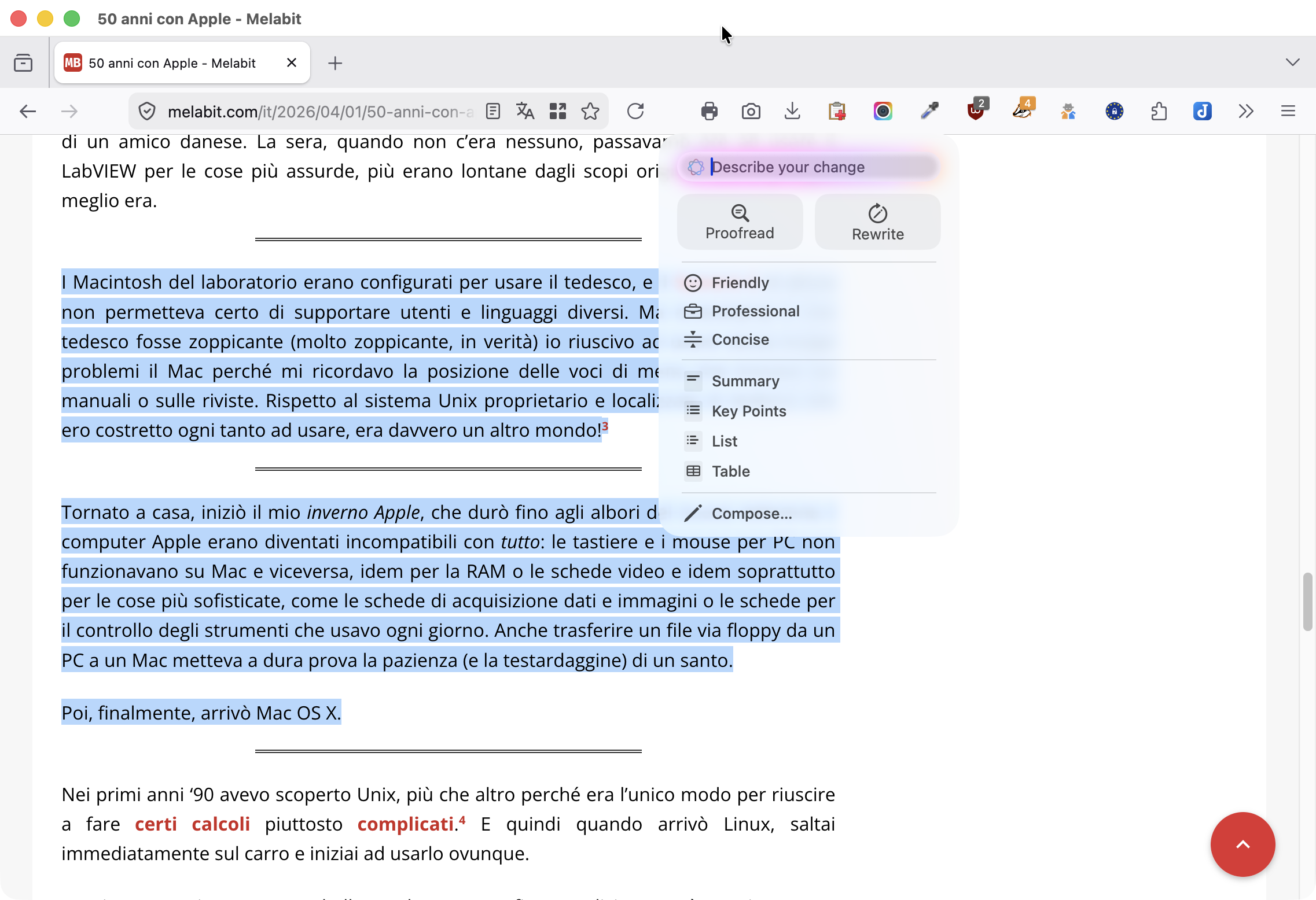
The language model (LLM) behind Apple Intelligence is accessible through the Foundation Models framework. And it is precisely this framework that allows developers to integrate artificial intelligence functions into applications running on macOS 26 as well as on iOS and iPadOS.
A few months ago, Apple added a new action to Shortcuts that also allowed end users to use the Foundation Models framework, but it wasn’t something that was really within everyone’s reach.
A few weeks ago a new tool called apfel (“apple” in German), became available, with which anyone can use the LLM integrated in macOS Tahoe via the command line and also through a simple GUI.
Installation
Installing apfel is a breeze for those who already use Homebrew. From the Terminal you must first run2
% brew update
% brew upgrade
to update homebrew, followed by
% brew install apfel
to install the application itself. Those who don’t use Homebrew (but they should!), can install it following these instructions.
As already mentioned, apfel only works on Macs with macOS 26 Tahoe and Apple Silicon. If you try to install it on Sequoia you get this error message.
% brew install apfel
==> Fetching downloads for: apfel
✔︎ API Source apfel.rb                                                                        Verified      1.1KB/  1.1KB
apfel: A full installation of Xcode.app 26.4 is required to compile
this software. Installing just the Command Line Tools is not sufficient.

Xcode 26.4 cannot be installed on macOS 15.
You must upgrade your version of macOS.
apfel: This software does not run on macOS versions older than Tahoe.
Error: apfel: Unsatisfied requirements failed this build.
Configuration
Before using apfel you must either close and reopen the Terminal or open a new tab.3 But that’s not enough, you also need to activate Apple Intelligence on your Mac by running
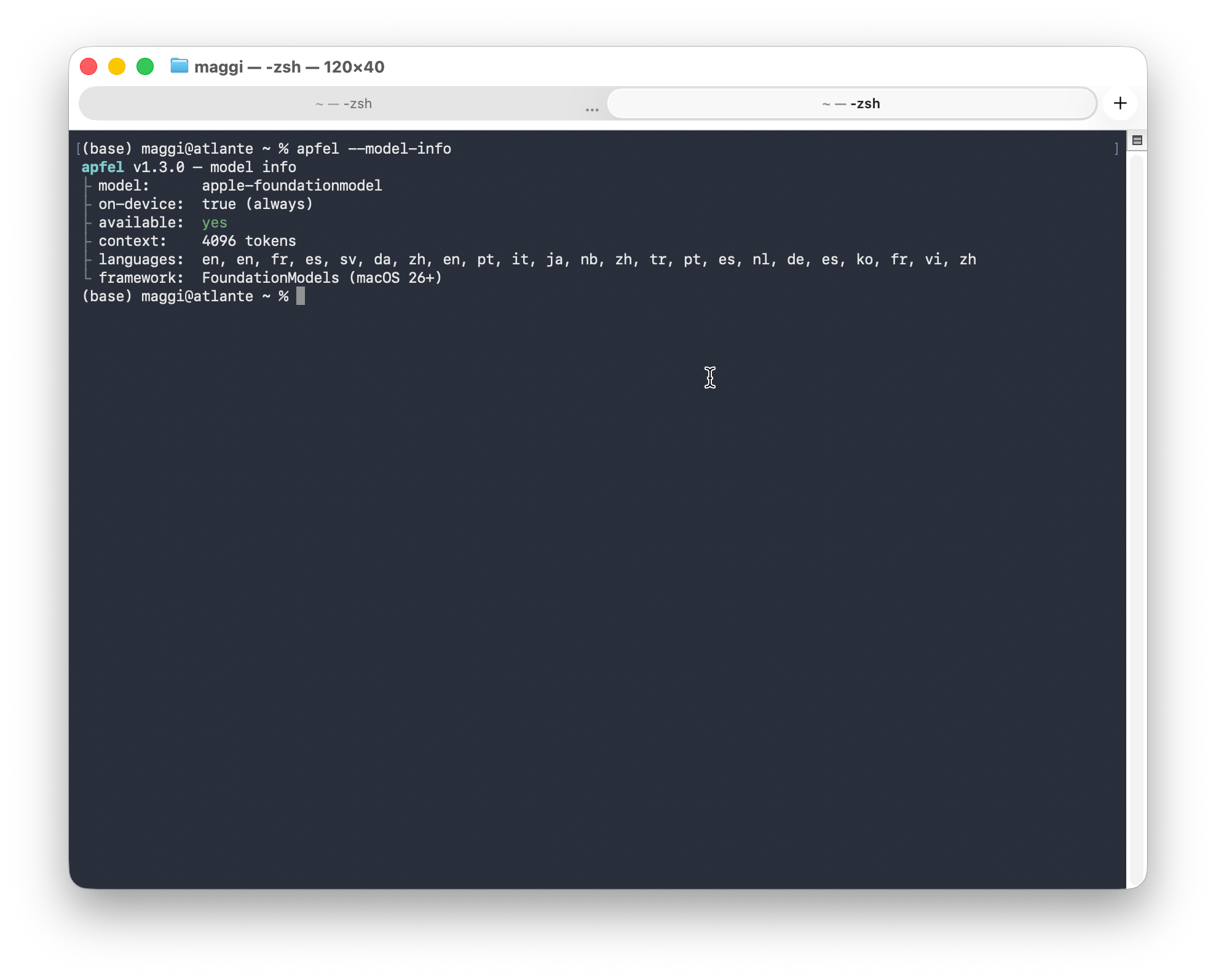
% apfel --model-info
and following its instructions, visible in the image below.
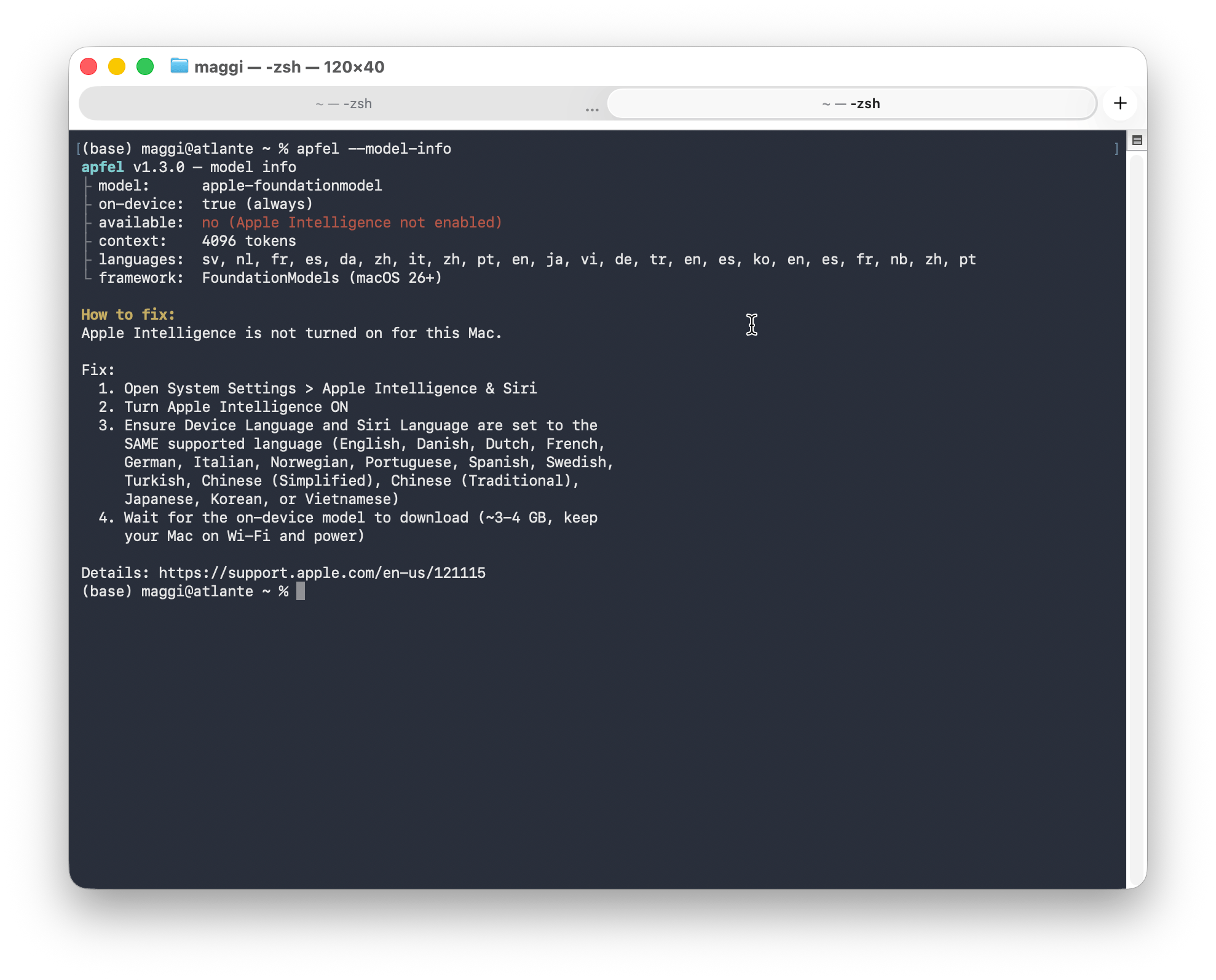
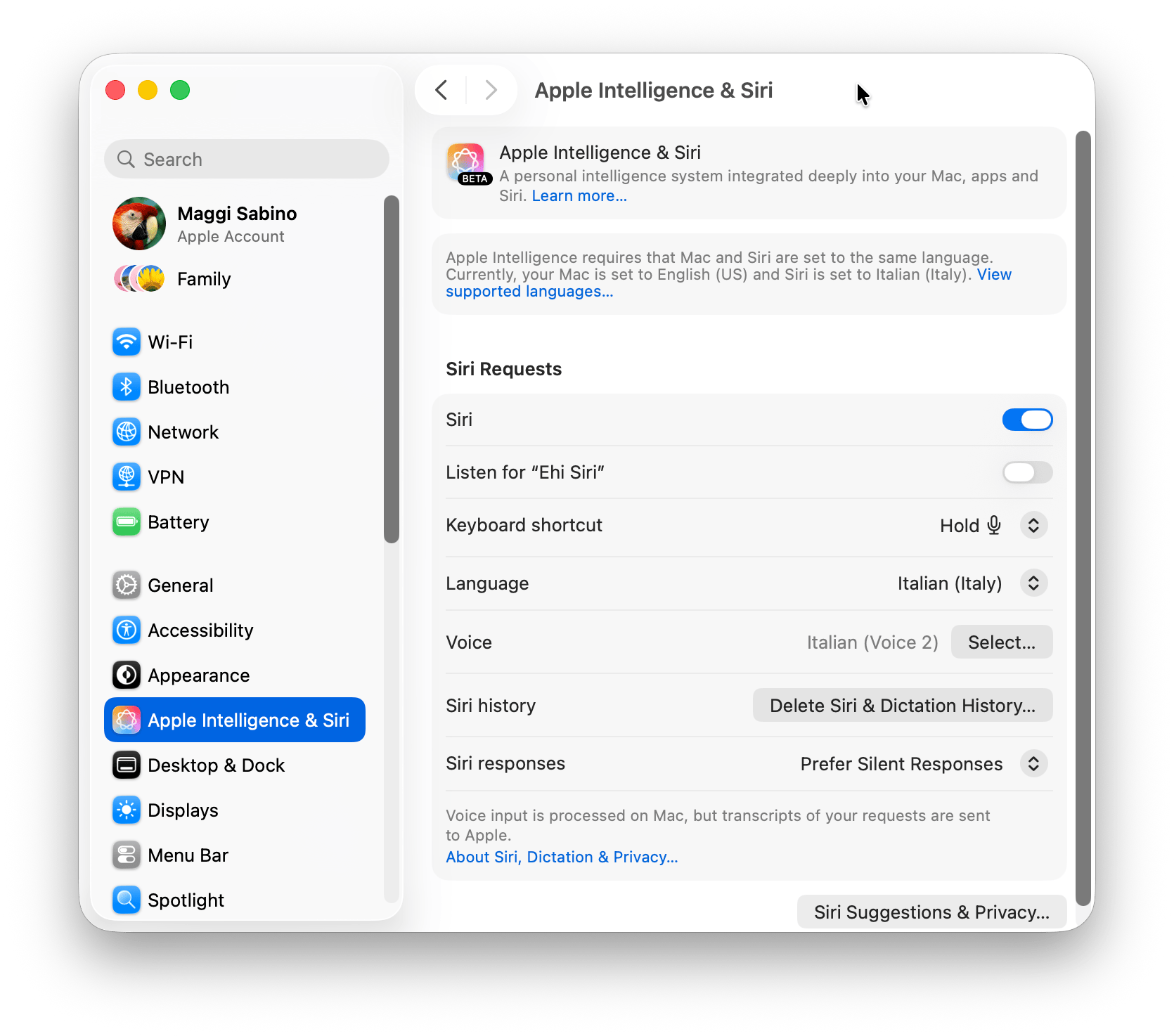
Basically, you need to go to System Settings > Apple Intelligence & Siri, configure Siri to use the same language as the Mac (I had to do this because I always use the Mac in English with Siri in Italian) and then activate the switch related to Apple Intelligence.
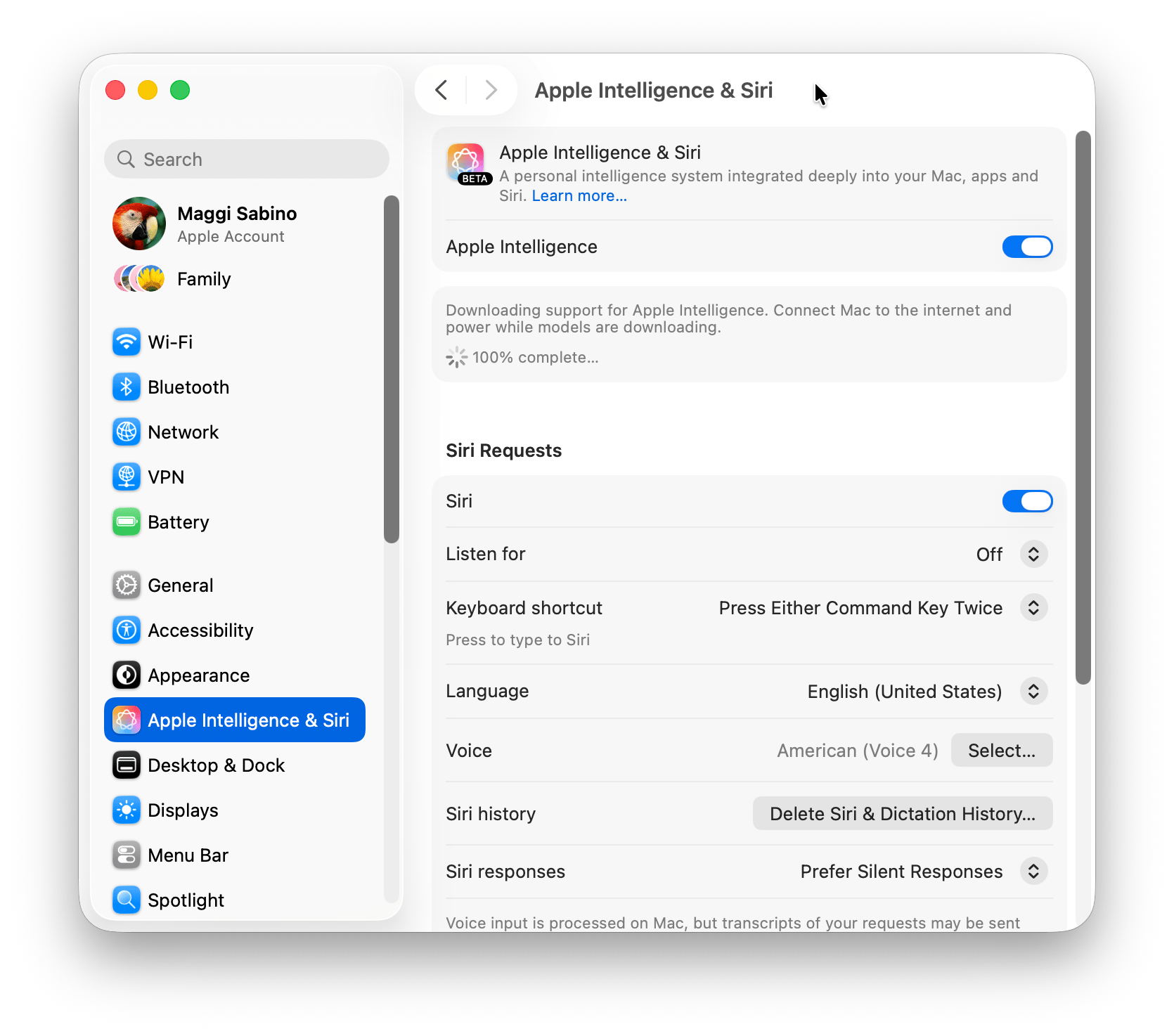
Don’t trust the 100% complete text that appears immediately after activating Apple Intelligence. This is probably a bug, because shortly afterwards, macOS starts downloading the model and this takes a while.
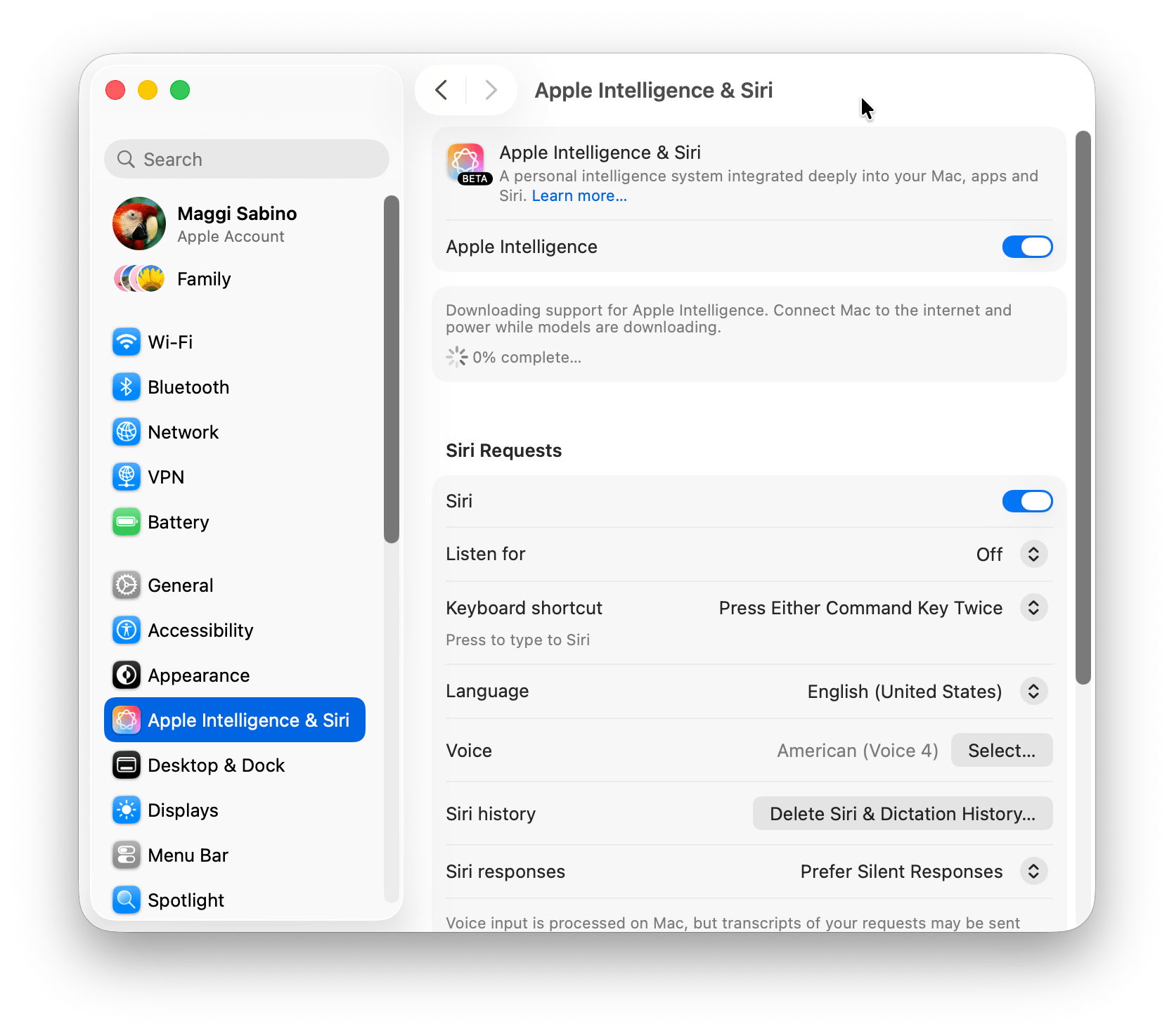
Once the model has finished downloading, apfel confirms that we are ready to use the model, so we can begin.
Many different ways to use apfel
The simplest way to use apfel, which is also suitable for integration into a program, is to run the apfel command from the Terminal followed by the prompt within quotation marks. For example:
% apfel "What is the capital of Italy?"
The capital of Italy is Rome.
The apfel command has several useful options, well described in the README of the program. The most interesting options are listed below, where the symbol <n> represents the numerical value associated with the option:
--temperature <n>, sets the temperature of the response. A lower temperature (<n>close to 0) makes the response more repetitive, a higher temperature (<n>around 1 or more) makes it more random and unpredictable.--seed <n>, sets the initial value of the random number generator used by the LLM. Fixing theseedvalue means that the same question will always produce an identical response.--max-tokens <n>, sets the maximum number of tokens in the response. A low value of<n>makes the response more concise, a high value allows the LLM to generate a longer response.--permissive, allows generating responses with less strict security filters. Frankly, I didn’t quite understand what it means in practice, but maybe I didn’t ask the right questions. In any case, it seems that the responses acquire a lighter and friendlier tone.
It is also possible to activate a server based on apfel, which can be queried via the curl command. The advantage in this case is that the response is a JSON file that can be easily processed automatically.
Alternatively, you can open a chat session in the Terminal via the apfel --chat command. This allows you to communicate directly with the LLM without putting questions in quotes. Here, you can use the arrow keys to scroll through the history of the current session and edit the previous questions.
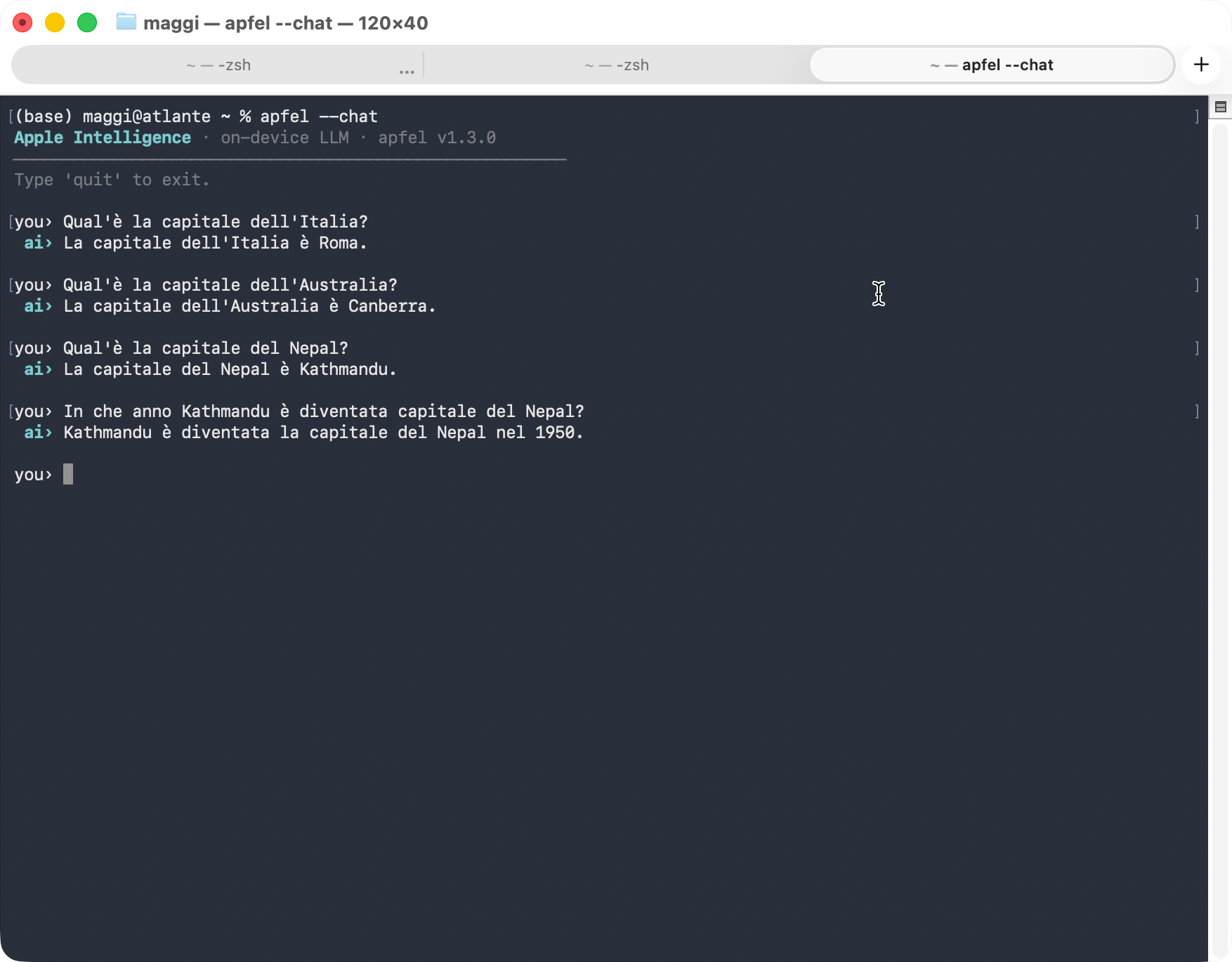
Lastly, a GUI for apfel is also available. It’s a very basic GUI, so don’t expect the same level of sophistication as with Claude, Gemini, ChatGPT and the like.
Putting apfel through its paces
Before starting, it is worth noting that Apple’s language model, unique among those produced by the major companies in the field (OpenAI, Anthropic, Google, Microsoft, Meta, you know the names), does not require an internet connection to work, but runs exclusively on the machine where it is installed (with some caveats). A guarantee for the privacy of our data that only Apple can offer.
However, as it has to run on iPhones, iPads and Macs, the Apple model has strong limitations in terms of size and, consequently, processing capacity. This is a detail to keep in mind when evaluating what it is capable of doing (and not doing). But this is a problem common to all local models, i.e., those that can be run on our personal machines. Ultimately, it’s a choice between power and privacy, and it’s never an easy one.
But, aside from answering trivial questions like the ones above, what is apfel really capable of doing (and consequently the Apple language model that apfel relies on)?
Forget about using it for math, logical reasoning or writing code. Apple isn’t exaggerating when it writes that all these activities are beyond the scope of its model.
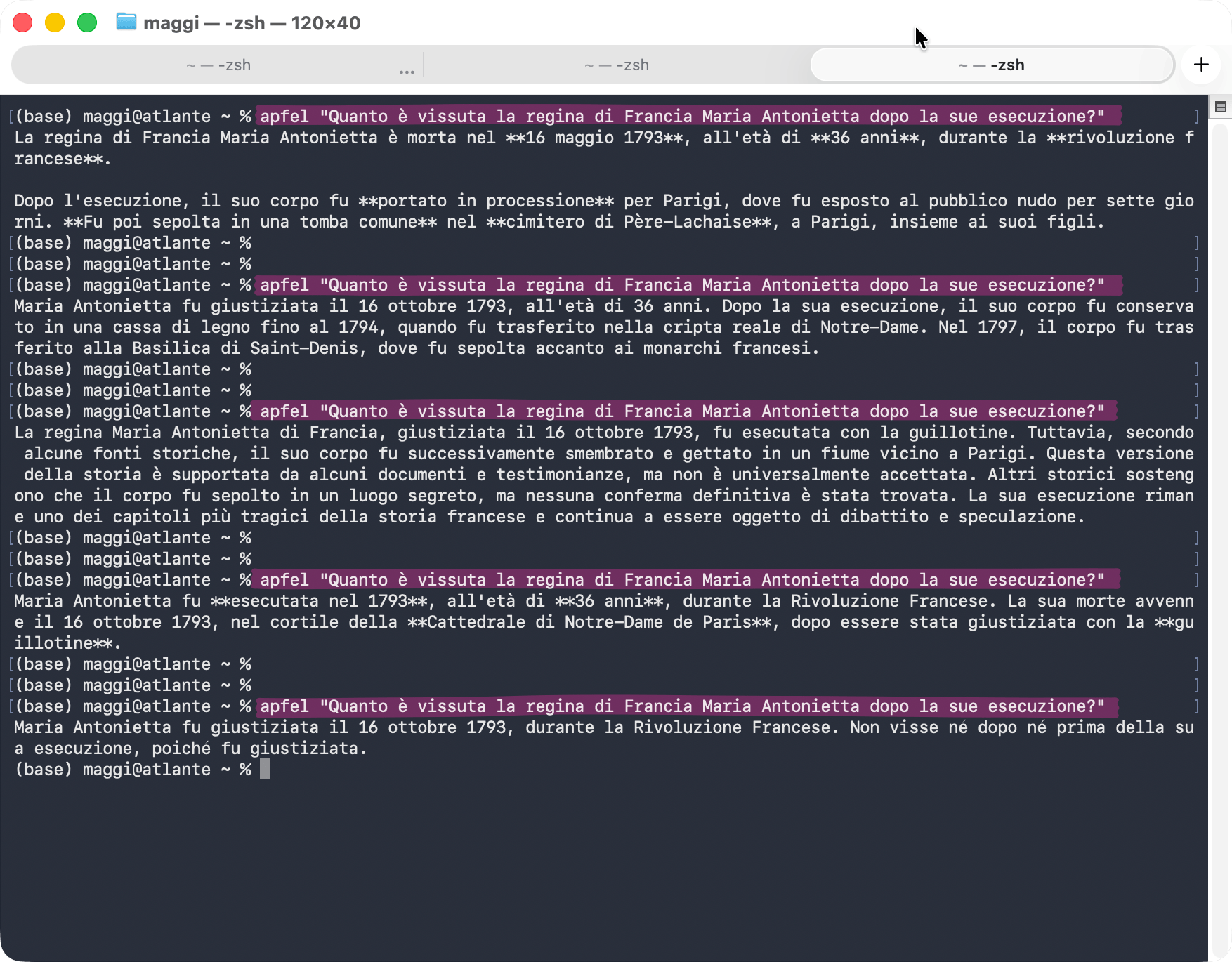
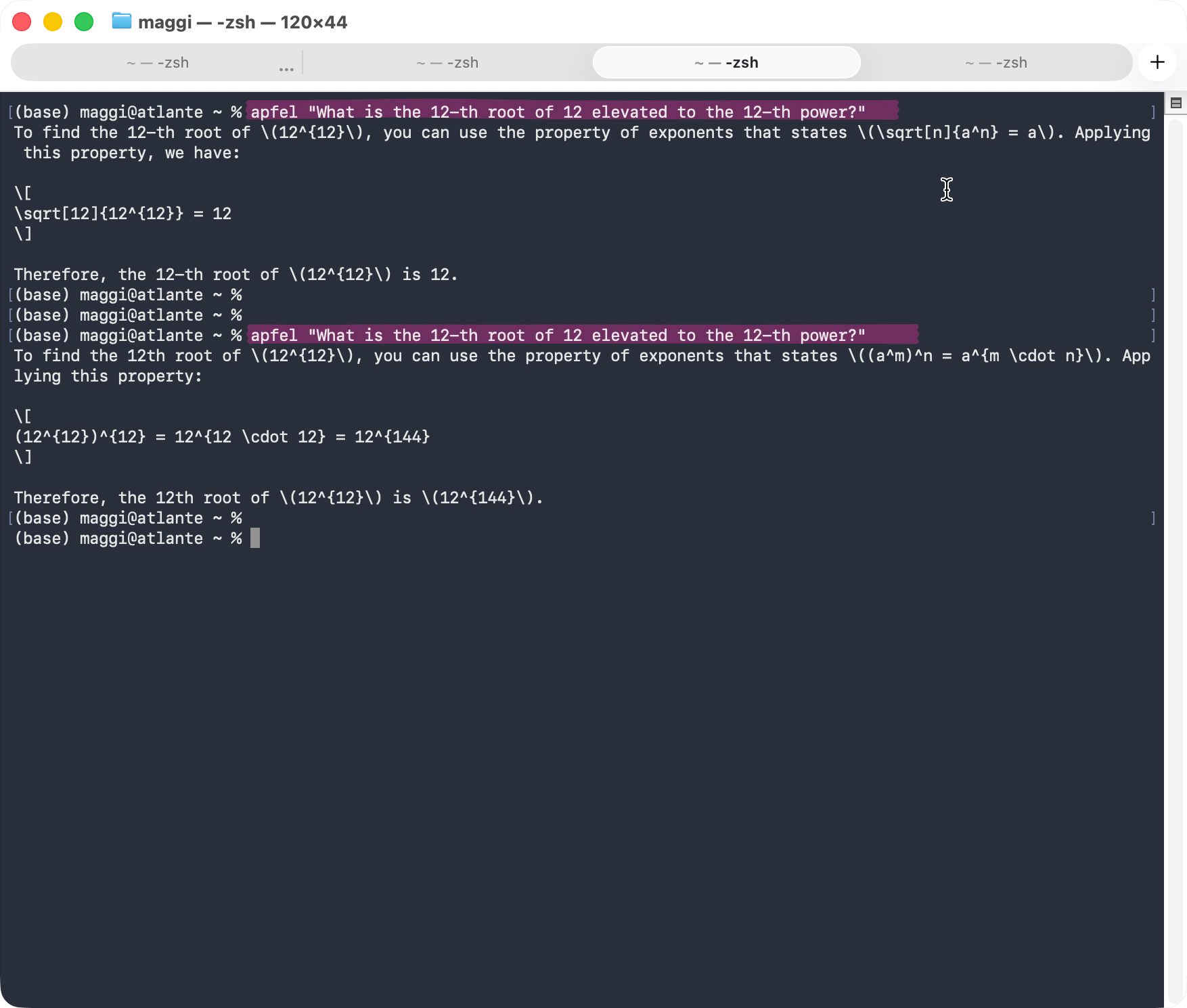
In italian, the usual test on the death of Marie Antoinette produces very variable answers, sometimes correct and sometimes completely made up. When using English it performs slightly better, but that is normal because English is the native language of all LLMs. Math is not its strong point, either. It’s not so much because the answers are wrong, but because they are sometimes wrong. Would you ever use a calculator that usually gives the correct result, but every now and then makes mistakes? Needless to say, writing code is not an option, too.
When staying within the capabilities declared by Apple, things go much better.
I tried having apfel summarize a long note I dictated on my iPhone while I was out walking and, despite the presence of many transcription errors, repetitions and uncertainties, it did an excellent job. The note in question contains material that is still confidential, so having the security that the text fed to the LLM will remain only on my computer is an added value that far exceeds the model’s limitations.
No problem also asking it to be more or less concise, which in many cases can be really useful. It is also very easy to change the tone of the response, converting in a few seconds what we wrote into a press release or into a text understandable even by grandma.
It also does well with translations, I tried English and German but there’s no reason to think it wouldn’t do the same with other supported languages.
The responses are a bit slow, but I only tested apfel on a MacBook Air M1 (the only Mac I upgraded to Tahoe) and I guess newer Macs could give better results in terms of speed.
Why apfel and not Apple Intelligence?
It is simple: because the Writing Tools integrated in Apple Intelligence have default settings that work well in most cases. However, only apfel allows you to define in detail what you want to achieve.
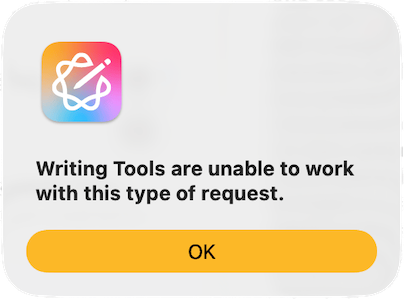
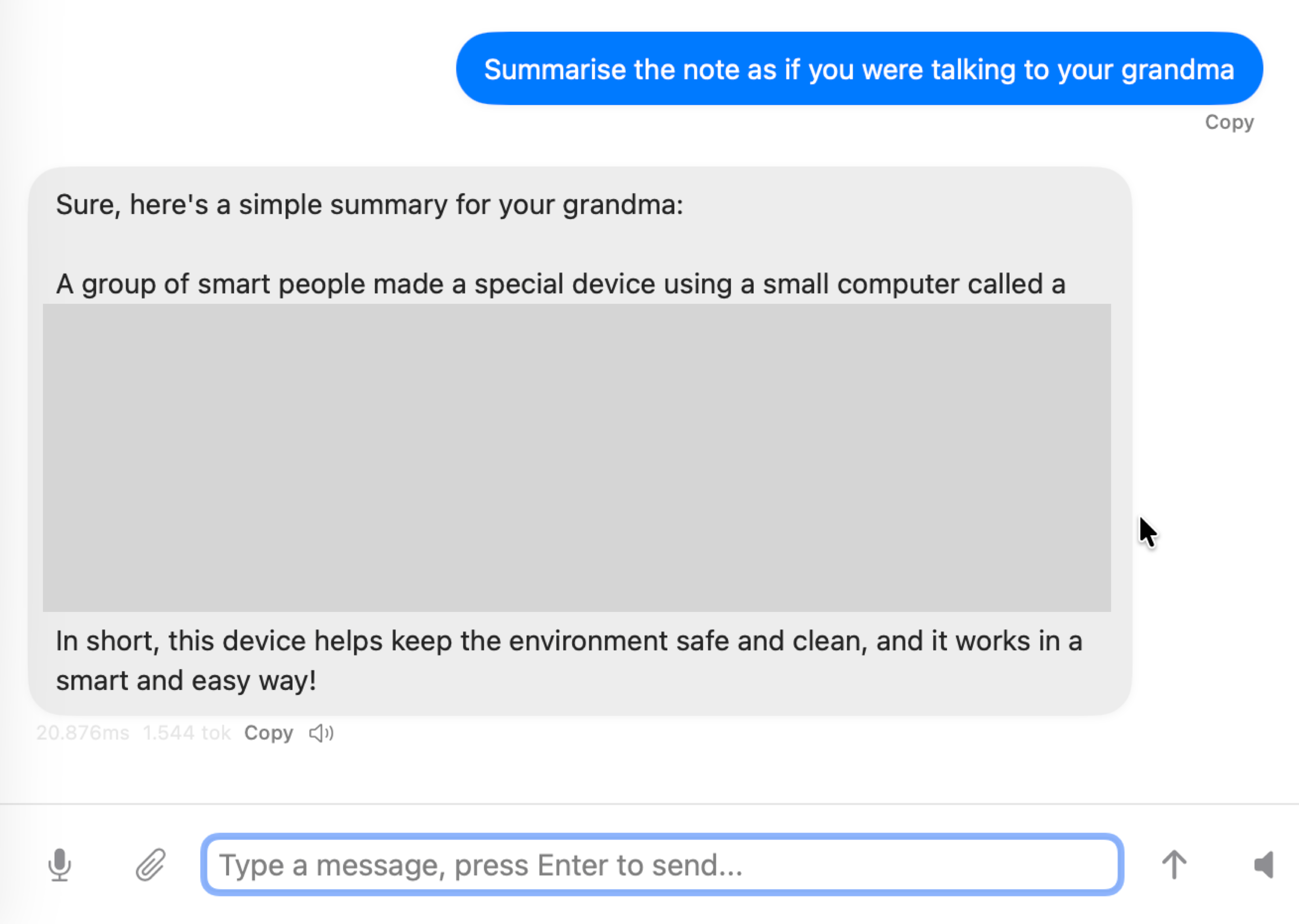
Indeed, if I ask the Writing Tools to summarize the same note as before in a way that even grandma can understand, it replies that it cannot do it, without any further explanation.
If I ask the same thing to apfel, not only does it summarize the text without hesitation, but since I asked the question in English, it also translates it into this language (part of the text in the image below is blurred because, as I said before, it contains information that is still confidential).
In short, Apple Intelligence is a tool that anyone can use immediately. However, if you need flexibility, apfel is without doubt the best choice.
Conclusions
Apple is right: its language model isn’t a general-purpose model capable of competing with ChatGPT, Gemini, or Claude. But it does well what it is supposed to do, and the fact that it runs on a Mac (or an iPhone or iPad) is an added value that more than compensates for its limitations.
According to Apple, only the most complex requests need to rely on larger models in the cloud. This seems to be true when using apfel: whenever I disabled the network connection, apfel continued to work without any issue.
However, with the Writing Tools, it’s a different story because some functions are deactivated as soon as the internet connection is lost.
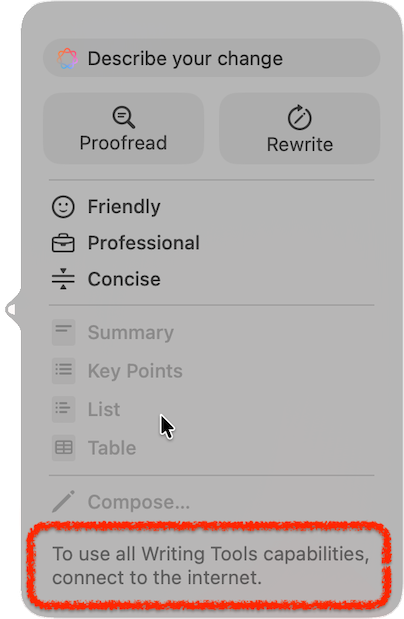
A difference in behavior that deserves further exploration.
When using apfel you have to deal with a certain slowness in responses. I used a MacBook Air M1, on a newer Mac the processing would certainly be faster. However, I doubt it will be much faster because, after all, we’re still using a personal computer and not a server farm that costs billions of dollars.
From my point of view, the most serious flaw of Apple Intelligence and consequently of apfel, is that you have to configure your Mac and Siri to use the same language. As this change is global, it affects all Apple devices connected to the account. I noticed this when Siri on CarPlay suddenly started to speak in English instead of my home language. Luckily I was alone, otherwise I would have looked like a stupid presumptuous nerd.
If I want to go back to using Siri in Italian (and I do), I will be forced to deactivate Apple Intelligence, at least until Apple decides to remove this constraint. A constraint that technically makes little sense and seems only a retaliation against the rules imposed by the European Union on Apple and its competitors.
-
If you don’t like the screenshot (I don’t like it either), blame the designers of Liquid Glass. ↩︎
-
The
%symbol inzsh(or the$inbash) represents the shell prompt and is not part of the actual command. I use it to visually distinguish commands executed in the Terminal. which are preceded by%, from their responses, which do not include it. ↩︎ -
It’s a small annoyance that applies to any application installed via Homebrew. ↩︎