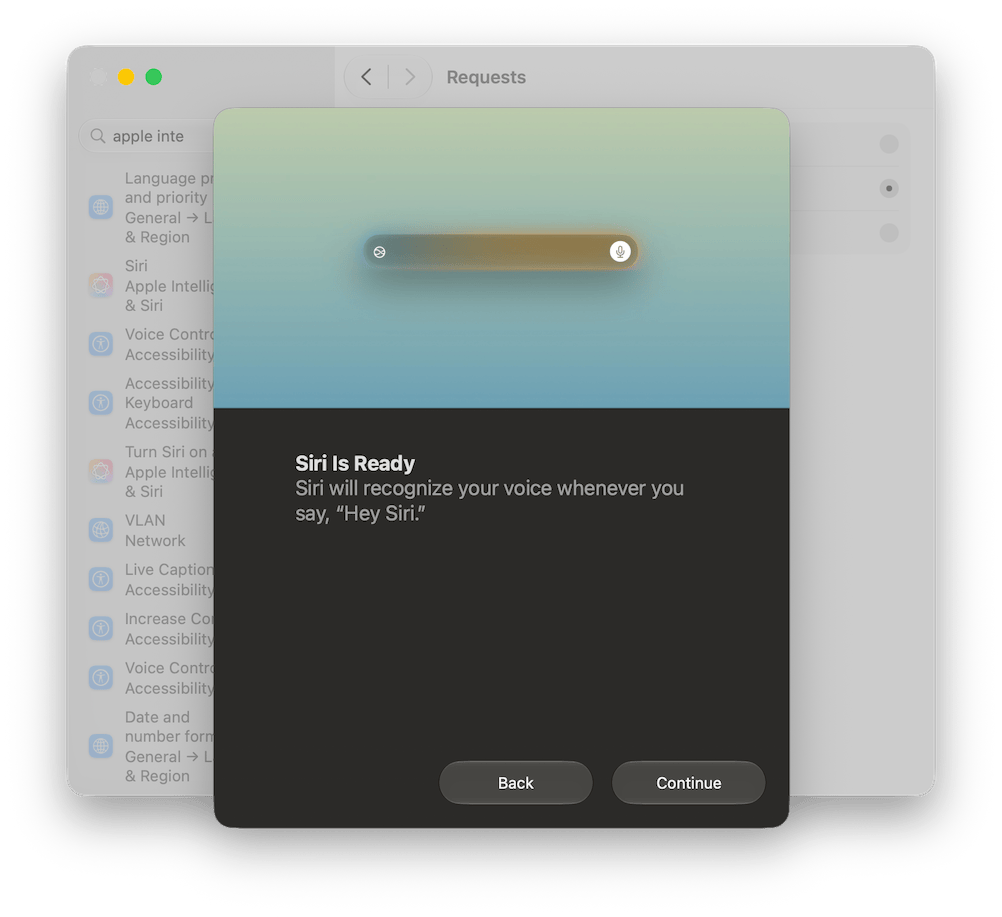
Earlier today, I tried to activate Siri AI (Beta) on the Macbook Air M1 that I updated to Golden Gate a couple of weeks ago.
For now, and who knows for how much longer, here in Europe there’s no hope of using Siri AI on the iPhone or iPad due to the ongoing disputes between Apple and European regulators. But on the Mac, there shouldn’t be any issues, provided you use English as the language for both your Mac and Siri.
It is not just a matter of disk icons. As soon as I saw what Tahoe had done to the icons of many applications installed on my Mac, I decided I had to do something to restore the original look of the icons.
I tried several times, using Apple’s home‑automation tools, Automator and Shortcuts, but nothing worked and there was always some function missing. Or maybe I’m just not very good at using them.
After less than two months since the official release, Tahoe seems poised to become another one of those macOS versions to be forgotten, like Lion, Mavericks, Sierra, Catalina, or Ventura.
Aside from Liquid Glass, which I’ll discuss in a moment, what does Tahoe have that’s memorable? There’s the telephone‑call filter, which actually belongs more to iOS than macOS and still has many limitations, and there are also improvements to Spotlight search. But is it really worth upgrading an operating system just for that?1
– Image generated by Microsoft Designer AI.
In the past few months, I have written four posts about macOS Sonoma bugs (a complete list is at the end of this post) because I found it unbelievable that this macOS version was released with such glaring issues in the Finder and in disk management.
– Image generated by Microsoft Designer AI.
Sonoma’s bugs never fail to surprise, and here I describe a fresh one, which luckily has been fixed in Sequoia.
Take a new MacBook Air or Pro, where you’ve just installed Sonoma, or a MacBook where you erased the startup disk before installing Sonoma (what happens when simply updating from a previous version might be different).
 IT
IT
 EN
EN